
Did you know that a standard Windows installation sends a lot of data to Microsoft, including user telemetry data? If you want to disable the telemetry service, there are a few important things you should know and consider first!
Why you should turn off Windows telemetry services
A Windows 10 or Windows 11 system transmits hundreds of data packets containing telemetry information to Microsoft’s servers every week. This is especially true for factory-installed systems that haven’t been securely configured. We discovered this when we tested the BSI’s System Activity Monitor (SAM) in August 2022.
In February 2023, a wave of outrage swept the internet when a video from the PC Security Channel showed that a standard Windows 11 system transmits numerous additional data points besides telemetry – immediately after installation. Since then, many IT administrators have been wondering how to stop this “Windows spying”.
One very effective solution is System Hardening. This involves, among other things, disabling telemetry services and stopping the data stream. Our tests have proven successful!
What telemetry data does Windows transmit to Microsoft?
Telemetry services are fully integrated into Windows 10 and Windows 11. System services (for example, Connected User Experiences & Telemetry, also known as DiagTrack) automatically collect diagnostic and usage data and send it encrypted to Microsoft servers.
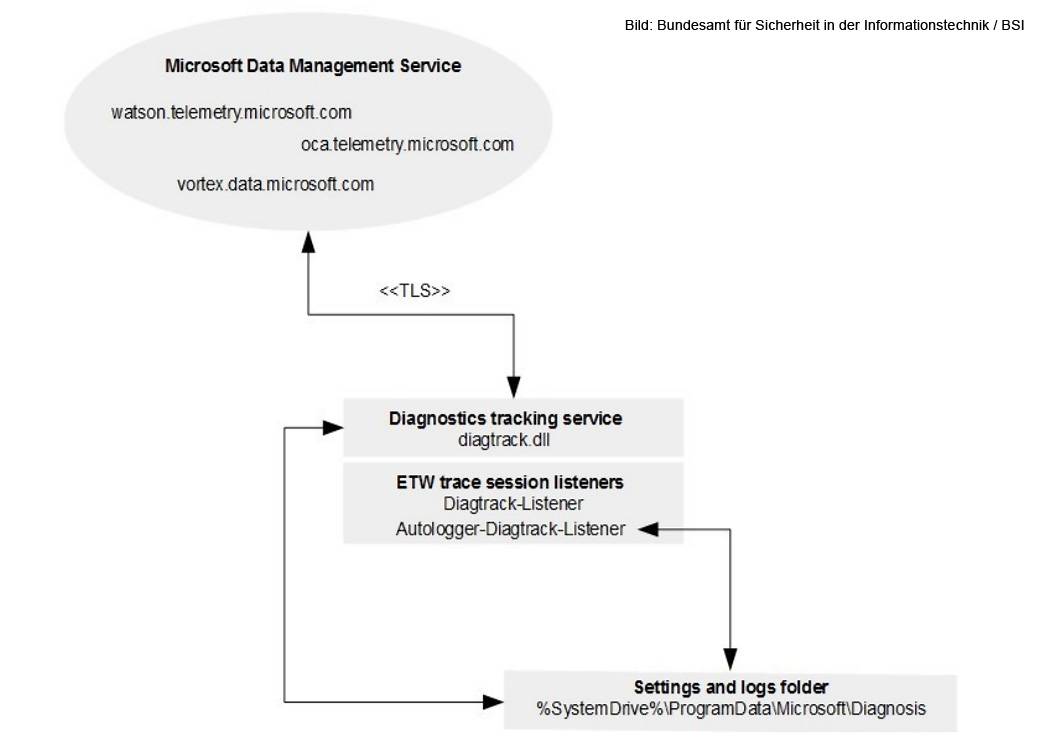
What exactly is in the data packets? Only Microsoft knows. According to official information, the telemetry data is used for security, error analysis, and further development of Windows. However, the packets could also contain information used to track users and for advertising purposes.
Why should you perform “Telemetry Hardening”?
✅ Numerous IT regulations and standards require Secure Configuration Management or, more specifically, System Hardening. These include, among others, NIS2, DORA, TISAX, and ISO 27001.
✅ Cyber insurance companies also require such measures from their clients. Otherwise, no policy is available, or only very expensive ones.
✅ Furthermore, the compliance officers in your company may not want your Windows systems constantly sending data to Microsoft.
Why should you NOT restrict the telemetry service?
Do you want to disable the Windows telemetry service immediately? Don’t rush into it. This could have the following consequences, for example:
🛑 Restricting or disabling telemetry will affect the operation of Intune. The diagnostic service will then no longer be able to collect data.
🛑 Restricting the telemetry service as required by the CIS Benchmarks can cause problems with in-place upgrades.
This means you need to make a conscious decision for or against Windows telemetry transmission. Carefully consider all the advantages and disadvantages!
What else needs to be considered when deactivating the system?
Implementation can be very time-consuming. You not only have to adjust Windows system settings according to current standards like CIS Benchmarks, but also securely configure various applications such as Edge, Chrome, and the Office programs. This is very resource-intensive, especially if you proceed manually or via Group Policy Objects (GPOs).
Furthermore, you need to consider: How will you ensure that the configuration adjustments are still active in a few weeks or months? Where will you document the current and target states of the “Telemetry Hardening”? How can you quickly generate the necessary reports for audits?
As you can see, it makes sense to use a professional hardening tool that disables telemetry services across your entire system landscape “at the push of a button” and records all changes. One such “shortcut” is Enforce Administrator.
⏬ Download: Enforce Administrator
Product Brochure (PDF)
Want to learn more about secure telemetry configuration and disabling?
Check out this episode of our webinar series “Hardening Insights” (in German with English subtitles.):
In just under 30 minutes, you’ll learn everything you need to know about “Telemetry Hardening,” with expert knowledge straight from practical experience. Below, you’ll see how you can use the free AuditTAP to record the hardening status.
Do you have any further questions?
Would you like to learn more about System Hardening? Or would you like to know how you can professionally implement System Hardening in your company using tools like AuditTAP and Enforce Administrator? Contact us – our experts are happy to help!
💬 Interested? Get in touch with us!
Images: Freepik, BSI